Updated on November 17, 2026
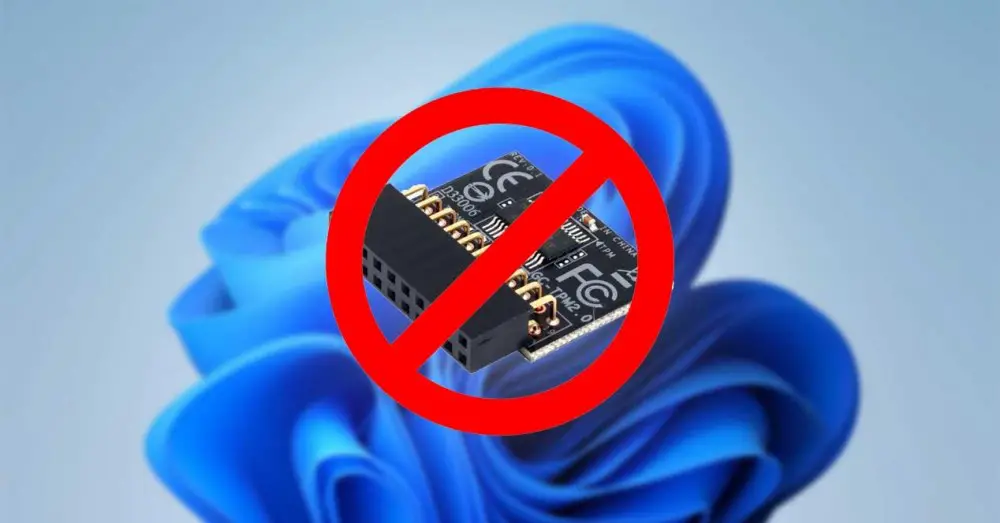
Start by finding out why Windows 11 calls your PC unsupported. Some computers already have TPM 2.0 and Secure Boot, but a firmware setting is switched off. If your hardware really falls short, you may be able to install Windows 11 from a USB drive created with Rufus. Microsoft treats the resulting installation as unsupported, and security and other updates are not guaranteed.
Check what is blocking the Windows 11 upgrade
Run Microsoft’s PC Health Check app or look for the reason given by Windows Setup. These checks help you decide what to do next.
| What Setup reports | What to check |
|---|---|
| TPM 2.0 required | Press Windows + R, enter tpm.msc and look for Specification Version 2.0. If Windows cannot find a TPM, check the firmware for Intel PTT or AMD fTPM. |
| Secure Boot required | Open msinfo32 and look at BIOS Mode and Secure Boot State. If BIOS Mode shows Legacy, check your PC maker’s UEFI instructions before changing it. Windows can stop starting if the current disk setup uses Legacy boot. |
| Processor unsupported | Check your CPU model against the Windows 11 system requirements. Skipping a Setup check cannot add instructions that the processor lacks. |
If your PC supports the required features, follow Microsoft’s instructions to enable TPM 2.0 and check Secure Boot, then run the compatibility check again. Save your BitLocker recovery key first if your system drive is encrypted.
Create a Windows 11 USB for unsupported hardware
This is the USB boot method for a clean installation. Back up your files and make sure you have the installers and license details for any apps you need. A clean install can erase your current Windows installation and its data.
- Download a Windows 11 disk image (ISO) from Microsoft. For a typical Intel or AMD PC, choose the x64 image.
- Download Rufus from its official site and plug in an empty USB drive with enough space for the image. Rufus erases the selected drive.
- In Rufus, select the USB under Device and pick the ISO under Boot selection. Use Standard Windows installation. Choose GPT for a PC that boots in UEFI mode.
- Click Start. When Windows User Experience opens, choose the option to remove the RAM, Secure Boot and TPM 2.0 requirements. Confirm that Rufus shows the correct USB before writing it.
- Restart and select the USB in your PC’s one-time boot menu. See how to boot your computer from a USB drive if you need to find that menu.
- Follow Windows Setup and check the target drive carefully. Deleting a partition erases the files on it. After Setup copies its files and restarts, let the PC boot from the internal drive.
After installation, check Windows Update and test essentials such as Wi-Fi, audio and sleep. Keep a backup you can restore if you run into hardware or update problems. Microsoft’s guidance for unsupported PCs explains the support policy.
Frequently asked questions
Can I install Windows 11 without TPM 2.0 or Secure Boot?
Rufus can bypass those Setup checks when you boot from the prepared USB. Whether Windows runs reliably still depends on the rest of the hardware.
Should I turn off TPM or Secure Boot to use Rufus?
Leave any available security features enabled if your PC can boot the USB with them. Rufus changes the installer checks and leaves the firmware settings for you to manage.
Can I keep my apps and files with this method?
For a clean install, boot from the USB. To try to keep your apps and files, open setup.exe from the USB while you are still signed into Windows. Rufus 4.6 introduced a workaround for some Windows 11 24H2 in-place upgrade checks. Results depend on the PC and the Windows release. Back up first. In Setup, choose Change what to keep and continue only if Keep personal files and apps is available. Microsoft’s installation media guide explains those options, and the Rufus release notes cover the workaround.
Will an unsupported PC get Windows 11 updates?
Windows Update can offer updates, but Microsoft does not guarantee them on unsupported devices. Major version upgrades may also run the compatibility checks again.