Updated on November 6, 2026
Intel XMP lets your PC apply a memory kit’s preset speed, timings and voltage together. XMP 3.0 is the version for compatible DDR5 memory. To use it, choose a profile in the BIOS or UEFI and check that your exact hardware can run it.
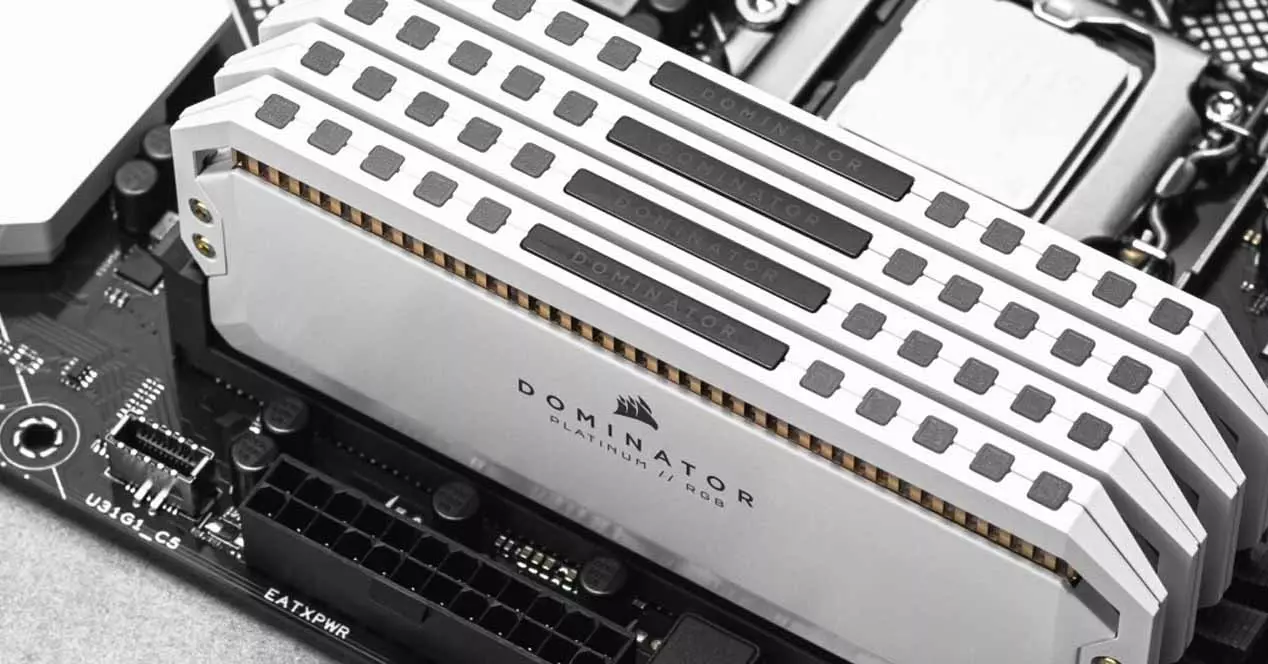
XMP 2.0 and XMP 3.0 compared
| Feature | XMP 2.0 | XMP 3.0 |
|---|---|---|
| Memory type | DDR4 | DDR5 |
| Profile slots | Up to two vendor profiles | Up to three vendor profiles and two rewritable slots |
| What you choose | A preset the kit provides | A preset, or a custom profile if your firmware supports editing and saving it |
These are the limits of the profile formats. Check your memory kit and motherboard for the profiles you can actually select. For the basics, see our Intel XMP guide and Intel’s XMP documentation.
What to check before you enable XMP
- Processor and motherboard support. Look up your exact board or PC model. Some systems have limited memory controls.
- The exact memory kit. Check the manufacturer’s tested memory list, often called the QVL. Match the part number and the number of modules you’ll install.
- The profile settings. Running memory above the processor’s supported settings is overclocking. A kit’s rated speed also depends on the processor, board and module layout.
How to enable XMP in the BIOS
- Restart the PC and enter the BIOS or UEFI using the key or menu listed by your PC maker.
- Look under memory or overclocking settings. Select the XMP profile listed for your kit, then save and restart.
- Check the applied speed in the BIOS or in Task Manager > Performance > Memory. Test stability before relying on the new settings.
The first boot after a memory change can take longer while the PC trains the memory. If it boots but becomes unstable, return XMP to Auto or Off and test at the default settings. If it won’t start, use your board’s recovery instructions. Clearing CMOS can reset other BIOS settings too. See Intel’s setup guidance and your board maker’s recovery instructions.
Frequently asked questions
Can I use XMP 3.0 with DDR4 RAM?
XMP 3.0 is for DDR5. For compatible DDR4 kits, look for XMP 2.0 support.
Why is my RAM running below the speed on the box?
The PC may be using its standard memory settings. If your hardware supports the advertised profile, enable it in the BIOS and check the speed again after restarting.
Why can’t I see an XMP option in the BIOS?
Check the board or PC manual and your kit’s specifications. The system needs both a supported memory profile and firmware that lets you select it.
Is AMD EXPO the same as Intel XMP?
AMD EXPO is another memory-profile format for DDR5 on supported AMD systems. Check your board’s memory list for the exact kit and the profile it can use. AMD’s EXPO documentation