Updated on November 22, 2026
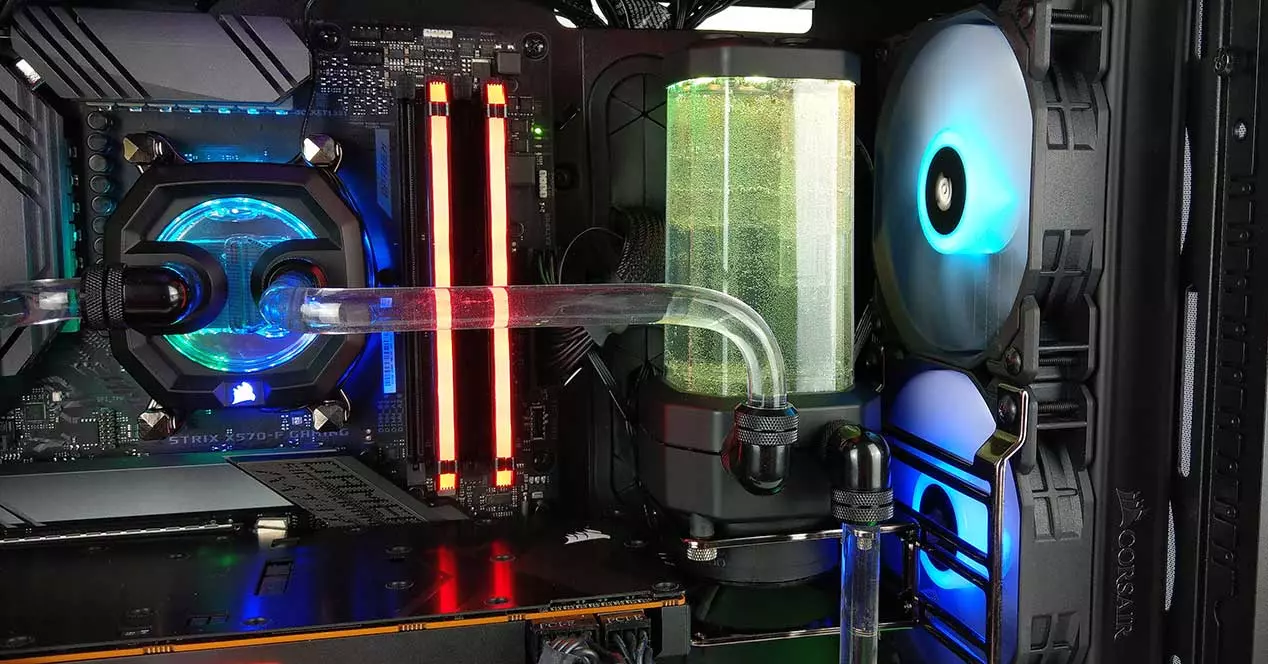
Switch off the PC and disconnect it from power if you find coolant inside the case. Use a dry power switch and unplug the power cord from a dry outlet if you can do so safely. If the plug or outlet is wet, leave it untouched and get help isolating the power. Keep the PC off while you identify where the liquid came from.
What to Do Right After a Leak
- Keep power disconnected. Skip test boots if liquid reached the motherboard, graphics card, cables, or power supply.
- Photograph the leak and affected parts. Look for a fresh drip or residue near the pump, radiator, hose ends, or fittings. Liquid can run downward from the source, so a wet graphics card may have been dripped on from above.
- Check the cooler type and warranty. Use the table below to decide whether to request a replacement or service a custom loop. Ask the manufacturer what information to provide if other components got wet.
- Have affected parts inspected and cleaned before powering up. Coolant can leave residue even after the surface looks dry. If liquid may have entered the power supply, leave it closed and have it assessed for replacement.
Sealed AIO vs. Custom Loop
| Cooler Type | Where to Check | What to Do |
|---|---|---|
| Sealed all-in-one cooler (AIO) | Hose crimps, pump housing, radiator seams, and wet traces below them. | Contact the cooler or PC maker. A leaking sealed unit normally needs replacement. Keep it assembled for warranty review. |
| Custom liquid cooling loop | Fittings, O-rings, drain plugs, reservoir, and tube ends. | With the system disconnected, follow the loop maker’s drain procedure and replace the faulty seal, fitting, tube, or part. Test the repaired loop before reconnecting PC hardware. |
High CPU temperatures or a new gurgling noise can have other causes, including pump or airflow problems. Check for visible moisture or residue before deciding the cooler leaked. For a sealed unit, Corsair’s AIO guidance explains why the hoses and radiator are factory sealed.
How to Prevent Liquid Cooling Leaks
- For an AIO, follow the mounting manual. Use the supplied radiator screws for your setup. A screw that goes too deep can damage the radiator. Route hoses without kinks or tension, and check them when you move or clean the PC. See our guide to mounting an AIO cooler for placement considerations.
- For a custom loop, check each connection. Use matching fittings and tubing, inspect each O-ring, and seat tubing evenly. Use coolant the manufacturer approves and follow its maintenance intervals.
- Test after changing the loop. Use the maker’s leak-test guide and pressure limits if using a pressure tester. For a filled-loop test, keep the rest of the PC unpowered and use the documented pump-only setup. Corsair’s custom-loop filling guide shows one such setup.
Frequently Asked Questions
Can I Turn the PC Back On When the Coolant Dries?
Have the affected parts checked and cleaned first. A dry-looking surface can still have residue or liquid underneath a component or inside a connector.
Can I Repair a Leaking AIO With Sealant?
A leaking factory-sealed cooler should be serviced or replaced through the maker or a qualified repair shop. Keep photos and your proof of purchase if it may be under warranty.
Can the Coolant Damage My Graphics Card?
Yes. Liquid can cause short circuits, and residue can lead to corrosion later. Treat any coolant that reaches electronics as a reason to disconnect power.
Does an Air Cooler Remove the Risk of a Liquid Cooling Leak?
A conventional air cooler eliminates the pumped coolant loop and its hoses and fittings. It can be a practical replacement if it fits the case and handles the CPU’s heat output.