Updated on
To make Edge remember tabs when closing, set its startup option to reopen the previous session. Then close the browser window with the tabs still open. If you close an individual tab first, use the reopen shortcut to recover it.
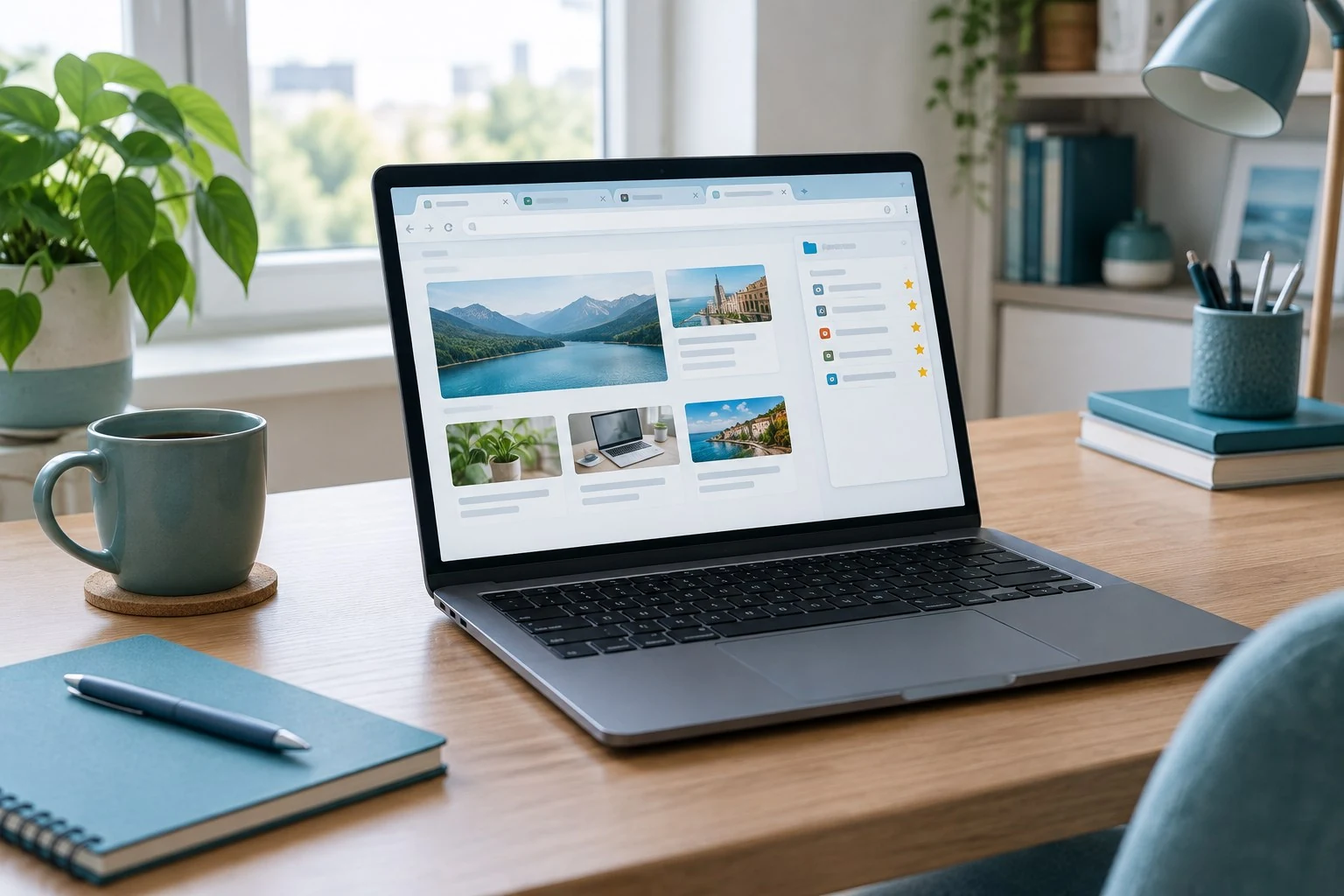
Make Edge reopen your tabs automatically
- Open Edge’s three-dot menu and select Settings.
- Open Start, home, and new tabs, or search Settings for “startup.”
- Under When Edge starts, choose the option to reopen the previous session. It may be labeled Open tabs from the previous session or Continue where you left off.
- Leave the tabs you want open, close the window and launch Edge again to check.
Microsoft’s startup guide explains this option. Choosing a new tab or a fixed list of startup pages has a different effect.
Recover a closed tab or window
Press Ctrl + Shift + T to reopen the most recently closed tab or window. Repeat it to work back through available closed items. You can also check History for recently closed pages.
Microsoft‘s closed-tab guide describes these recovery options. Try them soon after the mistake, before doing more browsing that makes the lost pages harder to find.
Choose the right way to keep a set of tabs
| Your goal | Use this |
|---|---|
| Resume the pages open when you closed Edge | The previous-session startup setting. |
| Undo an accidental tab closure | Ctrl + Shift + T or recently closed history. |
| Always open the same fixed websites | The startup option to open specific pages. |
| Keep an important project for later | Save the open tabs in a named Favorites folder. |
Back up open Edge tabs in a Favorites folder
Save the tabs in a named folder when you want to come back to the same pages after working on something else. Start while the tabs you want are open.
- Press Ctrl + Shift + D on Windows or Command + Shift + D on Mac.
- Name the folder something you’ll recognize, such as Project research. Choose where to keep it in Favorites and save it.
- To find it later, open Edge’s three-dot menu and select Favorites. Select a page in the folder to open it. To reopen the set together, right-click the folder and choose Open all or Open all in new window if that option is available.
Microsoft lists both shortcuts in its Edge keyboard shortcut guide. If you need the saved links in a different browser, our guide to switching browsers with your bookmarks covers your import options.
Favorites save page addresses. A reopened page can reload, so save unfinished forms or drafts in the website itself before closing Edge.
Why is Edge not restoring the tabs?
- Check the startup option again; a reset or managed policy may have changed it.
- Use the same Edge profile. Another profile has separate browsing data.
- Check whether the missing tabs were in an InPrivate window. Do not expect that temporary session to be kept like an ordinary one.
- If you had several windows, look in recently closed history for the missing window.
- Update Edge and check whether a cleanup tool removes browser data on exit.
Reopening a page and staying signed in are separate results. Cookie cleanup can make a restored tab ask for a password. If that is the problem, our Facebook saved-login guide explains the difference for Facebook.
Frequently asked questions
Can I save Edge tabs after I’ve already closed them?
Try Ctrl + Shift + T on Windows or Command + Shift + T on Mac to reopen a recent tab. For a missing window, look in History for recently closed windows. Once the pages are open again, save them to Favorites.
Why is the startup setting locked on a work or school computer?
Your organization can control Edge’s startup behavior. Ask your IT team about the setting. If you can save Favorites, a named folder gives you another way to return to the same pages.
Why can’t I see my Favorites folder after switching profiles?
Return to the Edge profile you used when you saved the folder. To move the saved links to another profile, use Edge’s Favorites export and import options.