Updated on November 24, 2026
You can also read this guide in German or French.
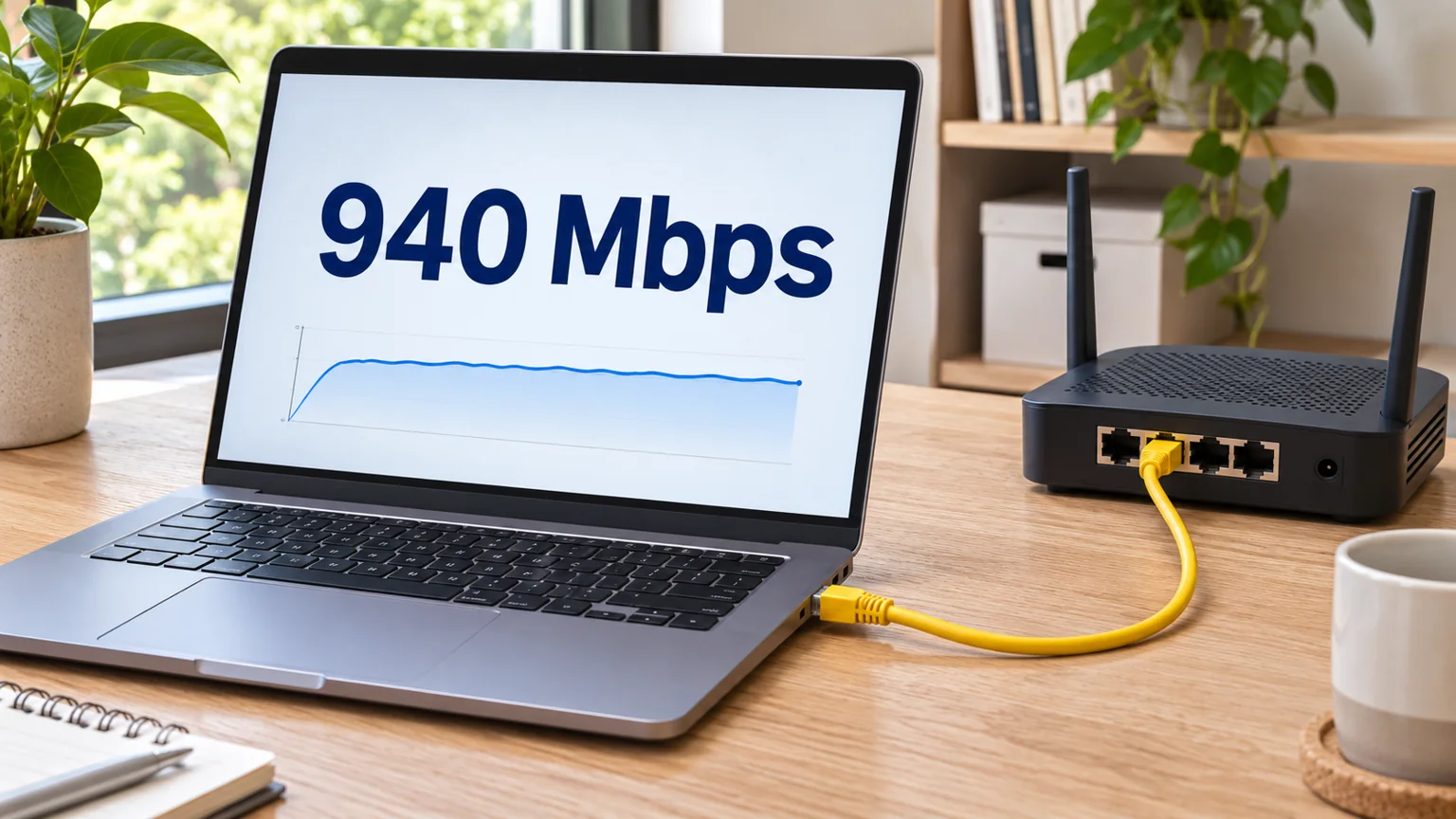
A wired speed test around 940 Mbps is a normal result on a 1 Gbps Ethernet connection. Some of the link’s capacity carries the information needed to deliver your data. If you pay for 1 Gbps and your wired results stay close to 940, you can usually keep your equipment. If you pay for 1.2 or 2 Gbps and still get 940, check the ports between your provider and your computer.
Where do the other 60 Mbps go?
One gigabit per second is 1,000 megabits per second. Ethernet sends bits in groups called frames. Each frame needs addresses, error-checking information and a short gap before the next one. The internet protocols inside the frame also need room. The IETF’s worked Ethernet example fits 1,460 bytes of TCP data into 1,538 bytes’ worth of time on the wire. Multiply 1,000 by 1,460 ÷ 1,538 and you get about 949 Mbps under those assumptions.
A real test can come in a little lower. For comparison, Verizon lists wired speeds for its Fios Gig plan of 750–940 Mbps down and 750–880 Mbps up. Other providers publish their own figures. Check the download and upload numbers for your address separately.
Compare a router test with a wired computer test
If your provider’s app offers a speed test to the gateway, run it and record the result. That test ends at the router. For the second test, connect a computer by Ethernet directly to a LAN port on the router, turn off Wi-Fi on that computer and pause large transfers. Test twice against the same nearby server. If the result is unexpectedly low, try another server before drawing a conclusion.
| What you measure | What to check next |
|---|---|
| 1 Gbps plan. Wired computer stays near 940 Mbps. | That fits a healthy gigabit Ethernet link. A new cable or faster switch is unlikely to improve that internet result. |
| 2 Gbps plan. Router reports 1.8 Gbps, computer reports 940 Mbps. | Start on your side of the router. Check its LAN port, the switch if you use one, and the computer’s adapter. The faster router test shows that more than 1 Gbps reached the gateway during that test. |
| Computer stays near 94 Mbps. | Look for a link running at 100 Mbps. Try a known-good cable and another router port, then recheck the link speed. |
| 2 Gbps plan. Router and wired computer both stay near 940 Mbps. | Check the speed of the router’s internet port and the modem or fiber box it connects to. If that link is above 1 Gbps, repeat the test before asking the provider to check the service profile. |
Follow the cable before buying a 2.5 GbE adapter
2.5 GbE means 2.5 Gigabit Ethernet. To measure more than 1 Gbps on one wired computer, the plan has to support it, and every link along that computer’s route has to carry it. Here’s the order to check.
- Modem or fiber box → router WAN port. WAN is the internet-facing port. If you have separate boxes, check the exact ports at both ends of this cable. If your provider supplied one combined gateway, start with its LAN port.
- Router LAN port → switch, if present. LAN ports serve your devices. A router may have one fast WAN port and several 1 Gbps LAN ports. If there’s a switch, check both the port feeding it and the port feeding the computer. Try connecting the computer directly to the router’s fast LAN port to isolate the switch.
- Computer, USB adapter or dock. Check the speed the equipment actually agreed to. In Windows, press Win + R, enter ncpa.cpl, then open the active Ethernet connection and read Speed. On a Mac, open System Settings → Network, choose the Ethernet adapter, then Details → Hardware. These illustrated link-speed checks show both systems. A reading of 1.0 Gbps or 1000baseT describes only the cable link to the next device.
Check the hardware version on the router label, too. The US Archer AX55 Pro V1 has one 2.5 Gbps port. Use it for the modem, and every wired computer port tops out at 1 Gbps. Yet the US V2.0/V2.6 datasheet for the same model name lists separate 2.5 Gbps WAN and LAN ports. On that version, moving the cable to the faster LAN port could be the whole fix.
If plugging directly into the router lifts your speed above 1 Gbps, check the switch before replacing the computer’s adapter. If Windows shows 100 Mbps even when connected directly, follow the steps for a wired connection capped at 100 Mbps. If every link shows 2.5 Gbps and your results still fall well below the plan, give your provider the plan name, router model and revision, gateway result, wired result, and test times.
Frequently asked questions
Why do I get 940 Mbps down but only 40 Mbps up?
Check the upload speed on your plan. Some services sell gigabit downloads with much lower uploads. If your plan specifies 40 Mbps up, that result fits. If it promises uploads near a gigabit, compare the wired and gateway upload results with cloud backups paused.
Does 940 Mbps mean files should download at 940 MB/s?
File downloads often use megabytes per second. There are eight bits in a byte, so 940 Mbps is about 117.5 MB/s before other limits such as the download server or disk. Our guide to megabits and megabytes explains the labels you’ll see.
Can two computers share more than 1 Gbps?
Yes, if your provider delivers more than 1 Gbps, the router can handle it and the two computers use separate paths through it. For example, two gigabit computers on separate router LAN ports can share a 2 Gbps connection. Plug both into a switch with a single 1 Gbps cable back to the router and they share that cable’s limit.
What if I measured 940 Mbps over Wi-Fi?
The number alone can’t tell you which link set the limit. Distance, interference and the Wi-Fi hardware at both ends affect the result. Run the wired test first. If both stop at roughly 940 Mbps, check the plan and the shared wired links before replacing the access point.