Updated on
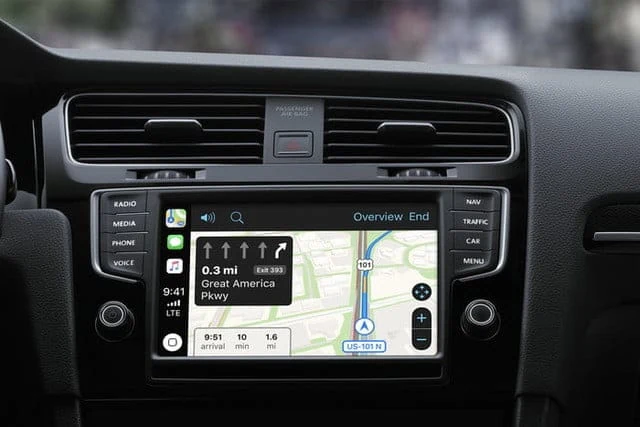
Apple CarPlay puts supported iPhone apps on a compatible car’s display. You can get directions, make calls, send or hear messages, and listen to music or podcasts using Siri and the car’s controls. Your iPhone supplies the apps; the car needs a CarPlay-compatible infotainment system.
It is not a full mirror of every app on your phone. Developers provide a CarPlay interface for supported apps, with controls designed for the car. Apple’s CarPlay documentation explains these app categories.
What can you do with CarPlay?
| Task | How it works | What to check |
|---|---|---|
| Navigation | Get directions with Apple Maps or a supported navigation app, such as Google Maps or Waze. | App availability, downloaded maps and the phone’s network connection. |
| Calls and messages | Use Siri, steering-wheel controls or the car’s screen. | The app’s CarPlay support and the permissions you allow. |
| Music, podcasts and audiobooks | Choose content from supported audio apps. | Some content needs a subscription or mobile data; downloaded content follows the app’s rules. |
| Other supported apps | Use compatible parking, charging, driving-task and other apps. | Features depend on the app, iOS, country and vehicle. |
Apple’s CarPlay overview lists supported app examples. You do not need to subscribe to Apple Music to use CarPlay with a different supported audio app. Set up your route and apps while parked.
What do you need?
You need a compatible iPhone, supported car or aftermarket stereo, and the right connection. Check Apple’s vehicle list, then confirm the model year, trim and wired or wireless support with the manufacturer. A USB socket or Bluetooth calling alone does not prove that a car supports CarPlay.
Keep the iPhone’s iOS and the car’s infotainment software up to date. Apple also lists compatible iPhones on its CarPlay page. CarPlay uses an iPhone; an iPad or iPod touch does not replace it. Android phones use a different in-car system, such as Android Auto.
Wired versus wireless CarPlay
| Connection | Setup | Main limit |
|---|---|---|
| Wired | Connect the iPhone to the car’s CarPlay USB port with a suitable data cable. | A charging-only port or cable may not work. Choose the right USB-C or Lightning connection for your iPhone and car. |
| Wireless | Put the car into pairing mode, with Bluetooth and Wi-Fi enabled on the iPhone. | The car must support wireless CarPlay. Bluetooth audio support is not enough. |
For wired setup, start the car, make sure Siri is enabled and connect the phone to the USB port marked for CarPlay or a smartphone. Follow the prompts on both screens.
For wireless setup, follow the car’s pairing instructions. You may need to hold its steering-wheel voice button. On the iPhone, open Settings > General > CarPlay and select the car. Check that Wi-Fi and Bluetooth are on and the CarPlay network can join automatically. Apple’s connection guide covers the different setup routes.
What is CarPlay Ultra?
CarPlay Ultra adds deeper integration with supported vehicles, including instruments and some car controls. Apple’s 2025 launch announcement specified iPhone 12 or later with iOS 18.5 or later. Ordinary CarPlay support does not mean a car supports Ultra; confirm current availability and upgrade options with the carmaker.
If CarPlay will not connect
- Check that the car supports the connection you are trying to use.
- For wired CarPlay, try another suitable data cable and the correct USB port.
- For wireless CarPlay, check both Wi-Fi and Bluetooth, then restart the phone and car.
- Check Siri and any Screen Time restrictions on CarPlay.
- If needed, open Settings > General > CarPlay, select the car and use Forget This Car, then pair again.
Apple’s CarPlay troubleshooting guide also recommends checking the stereo’s firmware. Repeated disconnects deserve a connection check before you buy an adapter.