Updated on November 23, 2026
This guide is also available in German and in French.
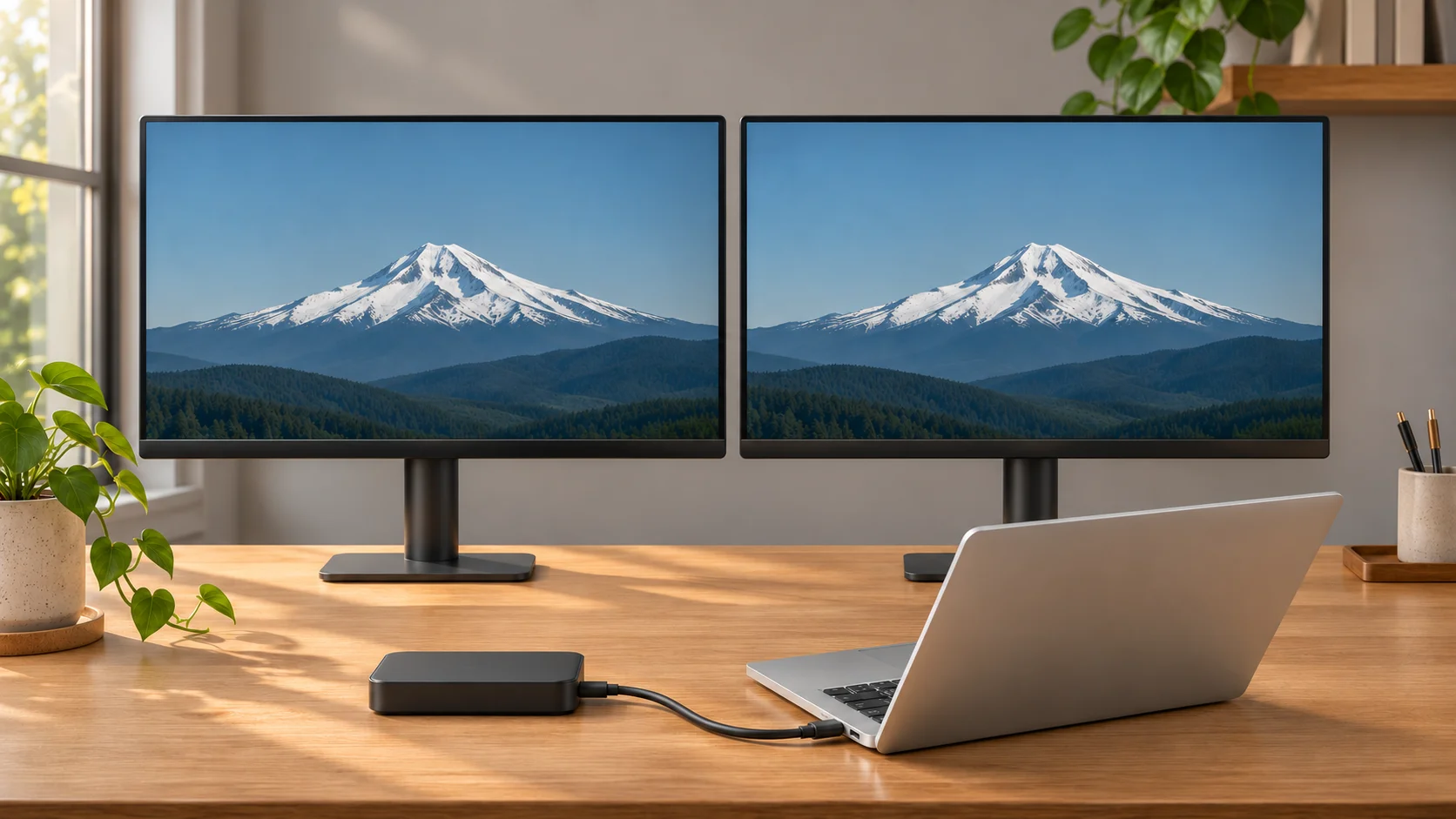
Start by checking how many external displays your MacBook sees. If macOS lists both monitors, try changing their display mode. If it lists one external display while both screens copy the same window, the dock may be sending one video feed to both. The fix depends on your MacBook model and how the dock sends video.
This often happens with USB-C docks that use DisplayPort Multi-Stream Transport (MST). A compatible Windows laptop can use the two outputs as separate displays. As Plugable’s MST compatibility guide explains, macOS doesn’t use MST to create two independent desktops. A dock with two HDMI sockets can therefore behave differently on the two computers.
Check what macOS sees before replacing the dock
- Open a window and try moving it from one external screen to the other. Two displays can use the same wallpaper and still be extended. If the window appears on both screens at once, check for mirroring.
- Open Apple menu → System Settings → Displays. If macOS lets you select the two external monitors separately, choose the one that’s mirroring and set Use as → Extended display. Apple’s display settings guide shows how to change the mode on a detected display. Drag a window across the screens again to confirm that they work independently.
- If both screens are lit and macOS lists only one external monitor, test each monitor on its own. Then, if your Mac supports two external displays in your current lid position, try connecting both directly to separate video-capable ports on the Mac. Apple recommends testing a direct connection when a hub or dock causes a display issue. If each screen extends over the direct connections, focus on the dock and its output ports.
- If a screen goes dark during testing, use our USB-C dock blank-screen checks to rule out the monitor input, cable, or adapter before changing your setup.
How many external displays does your MacBook support?
Check Apple menu → About This Mac for your model and chip. The table shows native support, meaning what the Mac can drive through its own video ports without USB display software. Check the exact model’s limits for resolution and refresh rate, too.
| MacBook model | Native external displays | What to check |
|---|---|---|
| MacBook Neo | One, up to 4K at 60 Hz. | Apple lists native video on the Neo’s USB 3 (USB-C) port. If you want two extended screens, check a DisplayLink dock that specifically lists Neo support. |
| MacBook Air with M1 or M2 | One. | For two independent external displays, use a compatible dock or adapter with USB display software such as DisplayLink. |
| MacBook Air with M3 or 14-inch MacBook Pro with the base M3 | One with the lid open. Two with the lid closed. | Follow Apple’s dual-monitor steps for M3. Connect power and an external keyboard and mouse or trackpad, and check the software requirements. |
| MacBook Air with M4 or M5 | Two with the built-in screen still in use. | Use Apple’s MacBook Air display limits to check your monitor resolutions and rates. Check which outputs can run together on your dock. |
| 14-inch MacBook Pro with M6 | Two with the built-in screen still in use. | Check the MacBook Pro M6 display combinations and the supported port pair on your dock. |
Some MacBook Pro models with Pro or Max chips have different limits. Use the full model and chip name in the specs instead of assuming all MacBook Pro models support the same number.
Which USB-C dock setup gives you two extended screens?
| Dock or adapter type | How it sends video | What to verify |
|---|---|---|
| USB-C dock or adapter that uses MST | Splits a DisplayPort feed between the outputs. On a Mac, this can show the same image on both screens. | Check the macOS note in the manual. The Plugable USBC-MSTH2 dual-HDMI adapter is an example of a two-output product whose Mac support differs from its Windows support. |
| Thunderbolt dock | Can carry two separate display streams from a compatible Mac. | Check the model and port pairing. The CalDigit TS4 documentation shows one monitor on its DisplayPort output and the second on a downstream Thunderbolt port with a suitable video cable or adapter. CalDigit’s MacBook compatibility chart lists the supported combinations. |
| DisplayLink dock or adapter | Sends display data over USB with help from software. It can add screens to Macs with a lower native display limit. | Check macOS and monitor support and follow the vendor’s setup instructions. The Plugable UD-6950PDH is rated for two 4K displays at 60 Hz with DisplayLink on compatible Macs. |
Before choosing DisplayLink, check whether you can install and run the software on your Mac. The DisplayLink Manager setup guide explains the macOS screen recording permission it needs to send the desktop to the monitors. DisplayLink also documents limitations with some protected streaming video while its displays are connected.
Try a second cable before buying a new dock
Say you have an M4 MacBook Air and two 4K HDMI monitors. Both work separately, but your dual-HDMI MST dock duplicates the image. Leave one monitor on the dock and connect the other to a free Thunderbolt port on the Mac using a USB-C-to-HDMI adapter rated for your display’s resolution and refresh rate. Go back to Displays and confirm you can move a window between the two screens.
If that works and you’re happy using two cables, you can keep your dock. If you want one cable to the laptop, look for a dock that states it supports two extended displays on your exact MacBook and specifies which outputs to use. For two 4K monitors, look for both screens at 60 Hz simultaneously in the specifications. Check the charging wattage separately if you also want the dock to power the laptop.
If the desk also serves a Windows PC, our guide to monitors with a built-in KVM switch can help you share the keyboard and mouse. Check each computer’s two-display support before choosing how to wire both.
Frequently asked questions
Can an HDMI splitter give my MacBook two extended screens?
An HDMI splitter duplicates one video signal. An extended desktop needs two displays that macOS can address separately.
Can a MacBook Air with M1 or M2 use two monitors?
It supports one external display natively. A compatible DisplayLink dock or adapter can provide two external desktops when the required software is installed and running.
Why did one monitor turn off when I opened my M3 MacBook Air?
The M3 MacBook Air can use two native external monitors in closed-lid mode. Opening the lid activates the built-in display and removes the second external monitor from that setup.
Will a Thunderbolt dock fix mirrored monitors automatically?
Check two things before buying. The Mac needs to support two native external displays in your setup, and the dock needs to offer a port pair that carries two independent signals to those monitors.
Can one dock cable run two 4K monitors and charge my MacBook?
Yes, with a compatible Mac and dock. Look for a rating of two 4K displays at 60 Hz simultaneously on macOS and check the dock’s charging output. Use the monitor ports and cables listed in the dock’s instructions.